Editing structures
v_ase separates inspection from physical editing. A file opens in lightweight
View mode by default; an empty v_ase gui document opens in Edit so a
cell and atoms can be created immediately. Switch with the top-bar View /
Edit control, or start a file in Edit from the terminal:
v_ase gui structure.extxyz --interactive
Physical and visual state are different
An Edit operation changes the working ASE structure. Camera motion, displayed cell replication, visual translation, atom appearance, bond styling, and the Render Area do not. Check which kind of state a control owns before using an exported structure as scientific input.
Select atoms deliberately
The retained selection controls transforms, measurements, constraint edits, appearance overrides, and several analysis tools.
Input |
Selection behavior |
|---|---|
Left-click |
Replace the selection with one atom |
Shift + left-click |
Add or remove the clicked atom |
Left-drag |
Replace the selection with atoms inside the box |
Shift + left-drag |
Invert membership for atoms inside the box |
|
Select all visible atoms |
|
Invert all visible atoms; clear when all were selected |
Selection order is meaningful. Two selected atoms define a distance, three
define the angle a1-a2-a3, and four define the signed torsion
a1-a2-a3-a4. Do not sort the selection when reproducing a measurement or a
pivot workflow.
Base atoms and periodic replicas
In View, a displayed supercell replica is a distinct visual reference. Its
identity contains both the base index and a cell offset such as 12@[1,0,0],
so direct measurements use the position actually displayed. Hiding that
reference in View does not delete an ASE atom.
In Edit, a clicked replica resolves to its unique base atom. All displayed equivalents receive a small selection ring, while the editable primary atom keeps the full halo. This prevents a display-only periodic image from becoming an accidental duplicate topology edit.
Warning
Delete Selected has mode-dependent meaning. In View it hides the exact selected visual references and their bonds. In Edit it physically deletes the deduplicated base atoms and remaps supported constraints.
Move, rotate, and scale coordinates
Select atoms, close or defocus the control panel with Esc, then start a
viewport transform:
Key |
Physical operation |
Numeric input |
|---|---|---|
|
Translate selected coordinates |
distance in Å |
|
Rotate selected coordinates |
angle in degrees |
|
Scale selected coordinate spacing about a pivot |
positive factor |
During any transform, press X, Y, or Z to lock the global Cartesian
axis. Type a value for an exact operation, then confirm with Enter or
left-click. Esc or right-click restores the pre-transform coordinates.
Nonzero Move increment / Å and Rotate increment / deg values under
Structure > Transform & Cell Match snap pointer-driven transforms; a zero
value keeps them continuous.
S scales coordinates only. It never changes atom radii, bond diameter, or
the unit cell. Use Structure > Appearance for atom size and Cell &
Replication for cell operations.
Rotation and scaling pivots
Choose the pivot under Structure > Transform & Cell Match:
Selection COM uses the selected center of mass;
Active atom (last selected) keeps the last-selected atom fixed;
Global origin uses
[0, 0, 0];Unit-cell center uses the current cell center.
For an atom-centered rotation, select the moving atoms first, Shift-select the pivot atom last, choose Active atom (last selected), and verify that the pivot coordinate is unchanged after commit.
During R, the viewport shows the pivot axis, a neutral fixed start reference,
and an amber moving reference. Cyan commensurate candidates, when enabled, are
separate guides and do not alter the requested free rotation.
Constraint-aware commits
The viewport provides a responsive preview, but committed positions come back from the ASE backend. With Structure > Constraints > Apply constraints enabled, FixAtoms, FixedLine, FixedPlane, FixScaled, and compatible Cartesian constraints can modify the final displacement. Disabling the switch allows a free commit for that operation; it does not delete the saved constraints. See Constraints and relaxation.
Copy, paste, duplicate, and delete
Ctrl+C and Ctrl+V copy selected atoms and paste an exact-coordinate
duplicate near the selected center. A duplicate preserves:
ASE element and complete visual label;
position, tag, charge, magnetic moment, and portable per-atom arrays;
compatible per-atom constraints;
valid per-atom single-point results; and
applicable atom-index appearance.
Whole-structure energy is not copied because it is invalid after the atom count changes. After duplicating or deleting atoms, re-read indices before performing another index-based operation.
Labels, chemical types, and identity
Every atom has two related identities:
TYPE is the ASE chemical element and controls atomic number, mass, element defaults, builders, and scientific calculations.
LABEL is the complete user-facing group name used by appearance, selection, bond pairs, RDF pairs, and repulsion pairs.
Repeated VASP species blocks can therefore remain O_1 and O_2 while both
retain chemical element O. Custom names such as Cu_surface and
O_adsorbate must not be truncated or reinterpreted as element symbols.
View mode can split or rename visual identities without changing ASE element types or coordinates. In Edit, changing TYPE is a physical identity edit. For a stable-topology trajectory, a visual label can follow the same atom index through every frame; if topology or element order differs, v_ase asks whether to limit the change to the active frame.
Build from an empty document
Run:
v_ase gui
The empty document starts in Edit. A typical periodic workflow is:
Open Structure > Cell & Replication.
Enter the Cartesian
3 x 3cell matrix and choose the three PBC axes.Select Set Unit Cell. This defines the ASE cell without scaling or moving any atom.
Open + Add atoms and use Single, Batch, or Build with ASE.
Inspect labels, positions, cell, and PBC before saving.
A finite nonperiodic model can be built without a cell. Batch placement then requires at least one finite Allow region because a Reject-only or unbounded domain has no finite sampling volume.
Add one atom
Open + Add atoms > Single in Edit:
Choose the chemical Type.
Enter a visual Label.
Enter Cartesian Position / Å, or initialize it from View Center or Selection.
Select Add and verify the new index and element.
Typing a valid element symbol as the label also selects that type in the GUI, but a later explicit Type choice is authoritative. Automation should always send the element and label separately rather than infer a chemical element from an arbitrary label.
Build a periodic bulk crystal with ASE
Use + Add atoms > Build with ASE. The panel executes the installed
ase.build.bulk rather than a copied structure table.
Enter a formula.
Choose Automatic from ASE or an explicit prototype.
Choose a compatible Native / primitive, Orthorhombic, or Cubic cell form.
Supply the enabled lattice parameters, angle,
c/a, internalu, or fractionalN x 3basis as requested.Select Validate. Review the exact atom count, lengths, angles, and any structured missing-field message.
Select Build Structure.
Automatic reference data is available only where the installed ASE version
provides it. A custom compound such as CuO needs an explicit compatible
prototype and lattice parameter. c and c/a are mutually exclusive.
Building creates one fully periodic frame and clears the previous trajectory. A nonempty document is replaced only after confirmation, and the whole change is one Undo entry.
Batch insertion workspace
For a complete feature walkthrough, including distribution choice, mixing, repulsion equations, and a runnable Python example, see Atomic and molecular distributions.
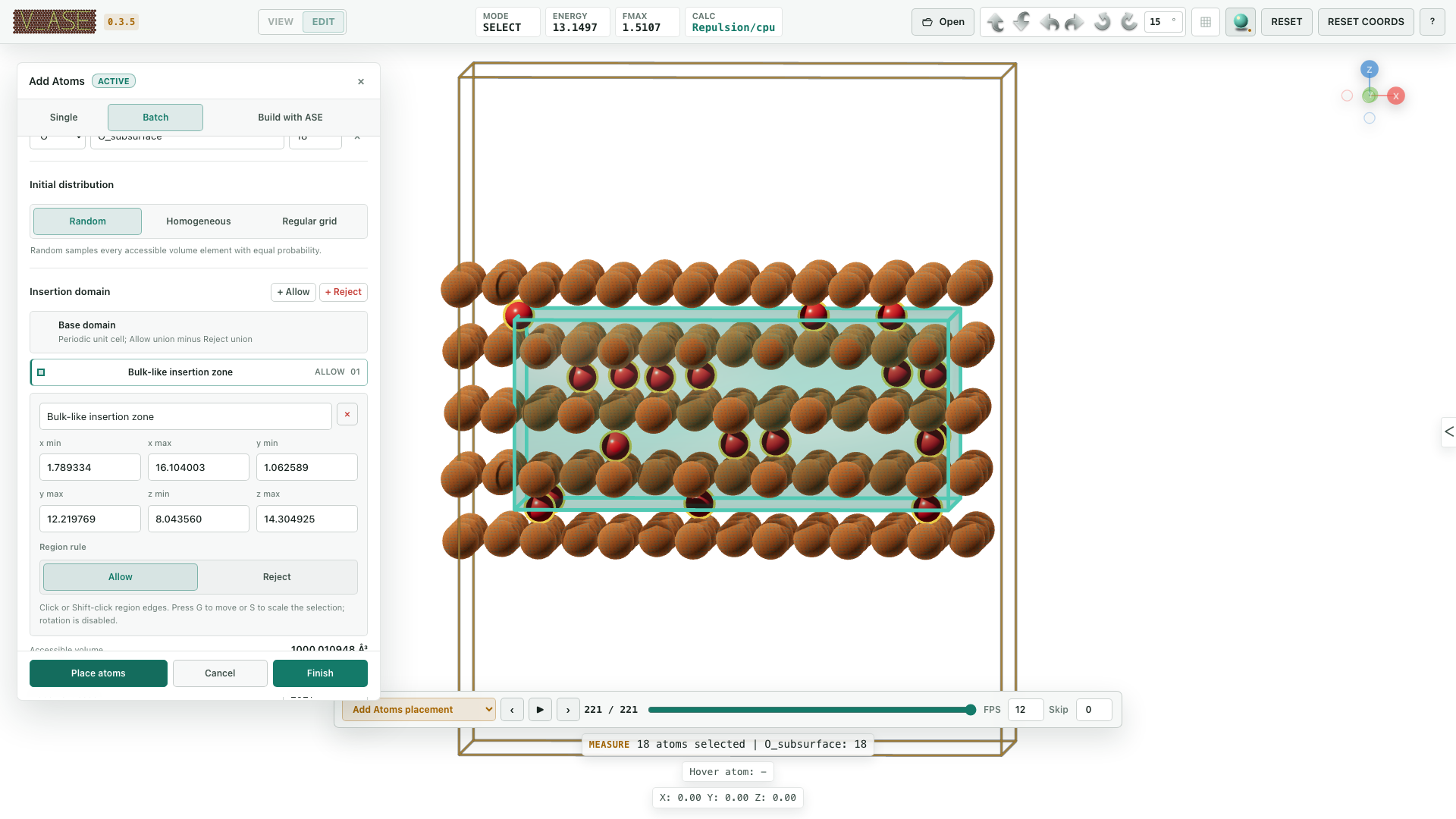
Open + Add atoms > Batch. Choose Atoms or Molecules, add one or more composition rows, then define placement and domain settings before selecting Place atoms or Place molecules.
The first placement starts one reversible staging session. Later placement calls append to the same session after any active placement relaxation has stopped. The structure that existed before the first placement remains the immutable host; every inserted batch remains staged and mobile until Finish. Cancel restores the exact pre-session structure and history.
Warning
Batch atom and molecule insertion is restricted to one structure. It is rejected for a trajectory because adding a different topology to only one frame would make frame identity ambiguous. Open the intended frame as a new standalone document first.
Placement distributions
Mode |
Meaning |
|---|---|
Random |
Volume-uniform sampling in an orthogonal or triclinic cell; a seed makes it reproducible |
Homogeneous |
Low-discrepancy candidates with maximin spacing; Cartesian Å distance is the default, fractional spacing is optional |
Regular grid |
One global Cartesian lattice clipped to the exact allowed domain |
Account for periodic boundaries uses the complete triclinic minimum image for spacing. Random sampling remains volume-uniform under either coordinate basis. Homogeneous refinement is bounded for large batches. An explicitly entered regular-grid spacing is never silently reduced: if too few accessible sites exist, placement fails and reports the available count.
Allow and Reject regions
Each region is an axis-aligned Cartesian box with stable name/ID, role, and
xmin/xmax, ymin/ymax, zmin/zmax bounds. With a finite cell, the exact
domain is:
unit cell ∩ (union of Allow regions, or full cell when none exist)
          ∖ union of Reject regions
Overlapping volume is counted once. Orthogonal and triclinic box/cell intersections are calculated analytically rather than estimated with voxels. With region MIC enabled, lattice-translated images are clipped to the primary cell while one intact source box remains visible.
Click a region row or a visible region edge; Shift-click selects several.
G translates their bounds together. S, optionally followed by X, Y, or
Z, scales them about their shared center. R is deliberately unavailable
because a rotated box could no longer be represented by the six displayed
Cartesian bounds.
Regions control initial sampling. Enforce Allow and Reject regions during relaxation is off by default. Enable it only when staged atoms must remain in the Boolean domain during repulsive placement; rigid molecules are tested by their native ASE template origin.
Molecules and density
Batch > Molecules reads the installed ASE G2 molecule catalog. It supports:
several molecule species in one placement;
integer Count mode;
target Density in
g/cm³;Haar-uniform random orientation; and
Preserve molecular geometry during placement, enabled by default.
Molecules are placed and rotated around the native ASE template origin; v_ase does not silently recenter them. In density mode, each row count is an integer composition ratio. v_ase reduces the ratio, uses the exact accessible volume and ASE molar masses, then chooses the nearest complete composition multiplier. It reports target and realized density rather than creating fractional molecules or rounding species independently.
With rigid geometry enabled, internal pair repulsion is excluded and forces are projected onto rigid translation and rotation. Move or rotate complete molecules; a partial transform that changes an internal distance is rejected.
Relax, append, finish, or cancel
Temporarily fix existing atoms is enabled by default. It freezes the immutable host only inside the staging optimizer and adds a temporary visual overlay; it does not modify committed ASE constraints or saved atom appearance.
Use Open Relaxation to configure the common settings under Structure > Relaxation, then start placement relaxation. After it becomes inactive:
edit regions and append another batch;
select Select added to restore selection of all accumulated content;
choose Finish to commit all inserted atoms while restoring every host coordinate, constraint, array, and calculator state; or
choose Cancel to restore the complete pre-session baseline.
See Constraints and relaxation for the calculator and optimizer contract.
Cell operations: choose the correct one
Goal |
GUI/API state |
Changes ASE data? |
|---|---|---|
Show repeated images |
Replicate cell / |
No |
Visually offset atoms and overlays |
translation controls / |
No |
Put selected COM at scene origin |
Selection COM to Origin |
No |
Move every atom but keep cell |
Apply Translation / |
Yes |
Wrap into the cell |
Wrap Atoms Into Cell / |
Yes for the affected frame(s) |
Make diagonal repeats the real cell |
Set Supercell as Cell / |
Yes |
Apply a general integer cell transform |
Cell Transform / |
Yes |
Replace the cell without moving atoms |
Set Unit Cell / |
Cell/PBC only |
In View, wrap affects the active displayed frame. In Edit, trajectory-wide physical cell and translation operations operate on editable frames and are recorded as one user action. General non-diagonal cell transforms are rejected while volumetric grids are loaded because preserving those samples would require an explicit interpolation choice.
Undo, redo, and reset
Ctrl+Z and Ctrl+Shift+Z traverse committed structure and visual-setting
actions. Camera navigation is excluded. One confirmed transform, panel Apply,
placement batch, or relaxation start is one history entry; intermediate
pointer or optimizer frames are not separate Undo steps.
During Add Atoms, Undo/Redo can traverse individual placement batches while Cancel still restores the baseline from before the first batch.
RESET COORDS restores original physical coordinates and cell-related source state while preserving visual translation and display replication.
RESET restores structure and visual settings together after confirmation.
Semantic equivalents
An external agent should first call describe, select exact zero-based base
indices, and include the current collaboration revision:
v_ase api "$COMMAND_URL" apply --params '{
  "expectedRevision": 7,
  "mode": "edit",
  "selection": {"clear": true, "indices": [3, 4, 5]},
  "operation": {
    "name": "rotate-selection",
    "axis": [0, 0, 1],
    "angleDeg": 30,
    "pivot": "selection",
    "applyConstraints": true
  }
}'
For atom creation, provide independent physical and visual identities:
{
  "mode": "edit",
  "operation": {
    "name": "add-atom",
    "element": "O",
    "label": "O_bridge",
    "position": [2.1, 3.4, 7.8]
  }
}
The live schema is authoritative for the complete operation parameter map.
After every topology edit, call describe again before reusing indices.
Editing checklist
Before handing off an edited structure, verify:
atom count, full labels, chemical elements, and ordering;
requested coordinates and unchanged pivot/host atoms;
cell matrix and PBC;
constraints and whether they were enforced;
trajectory frame count and topology compatibility;
staged Add Atoms state is either deliberately finished or cancelled;
Undo produces the expected single user-level reversal; and
the saved structure, project, or rendered output reopens successfully.